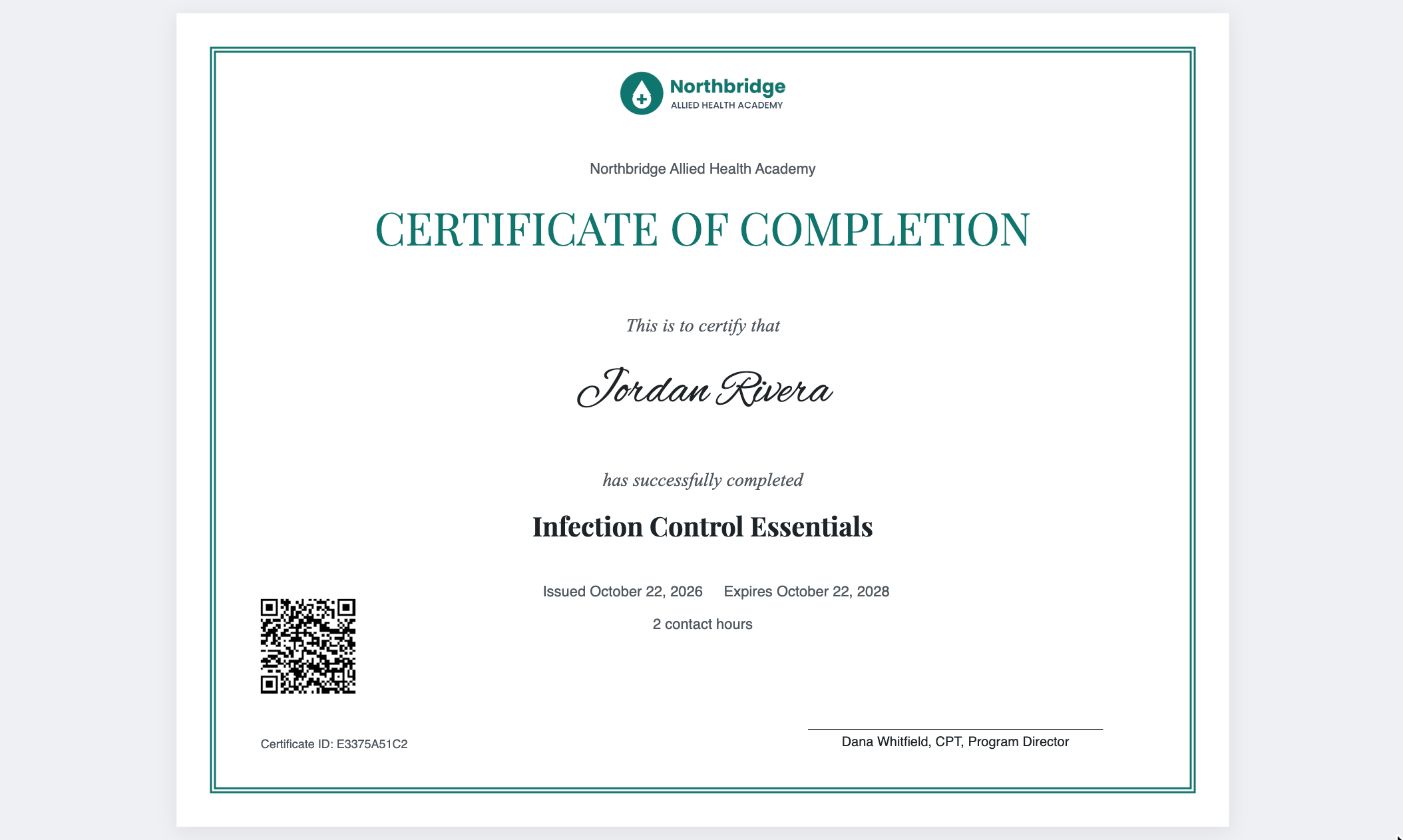
Design a certificate by dragging fields onto it. Students get a printable PDF certificate and a wallet card, both with a QR code anyone can scan to verify them.
4 steps
About 5 minutes
Walkthrough video
The video has no sound. Follow along with the written steps below.
1
Step 1 of 4
Design the certificate
Open Beacon LMS → Certificate Builder. Tick the fields you want (logo, student name, course, dates, CE hours, signature, QR code), then drag and resize them on the page. Make one default design or one per course.
2
Step 2 of 4
Students earn it automatically
When a student completes the course, the certificate is issued with a unique ID, issue date and expiry date if the course needs renewal.
3
Step 3 of 4
A wallet card for their phone
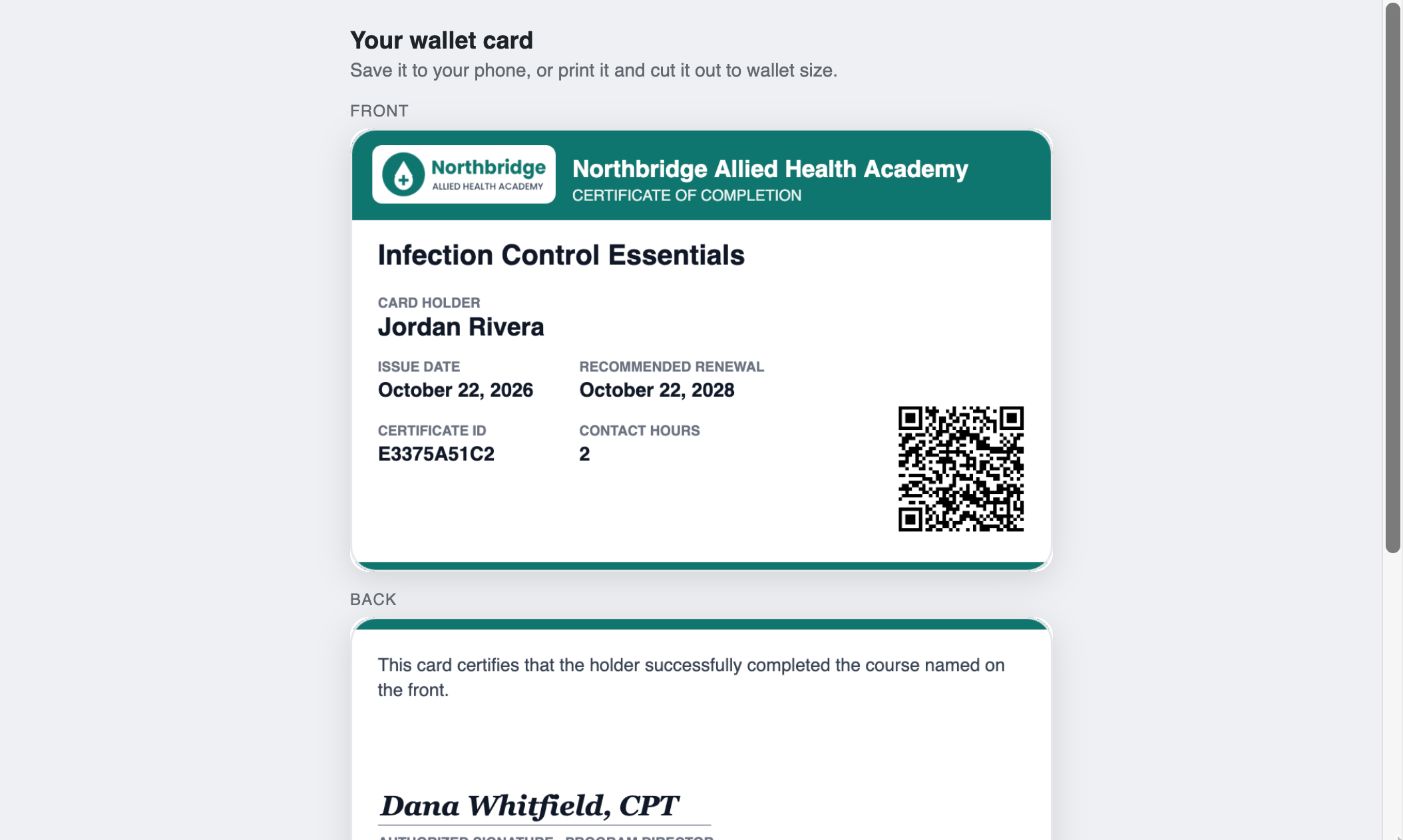
Each certificate also comes as a front-and-back wallet card. Students can save it as an image on their phone or print it and cut it out.
4
Step 4 of 4
Verification and records
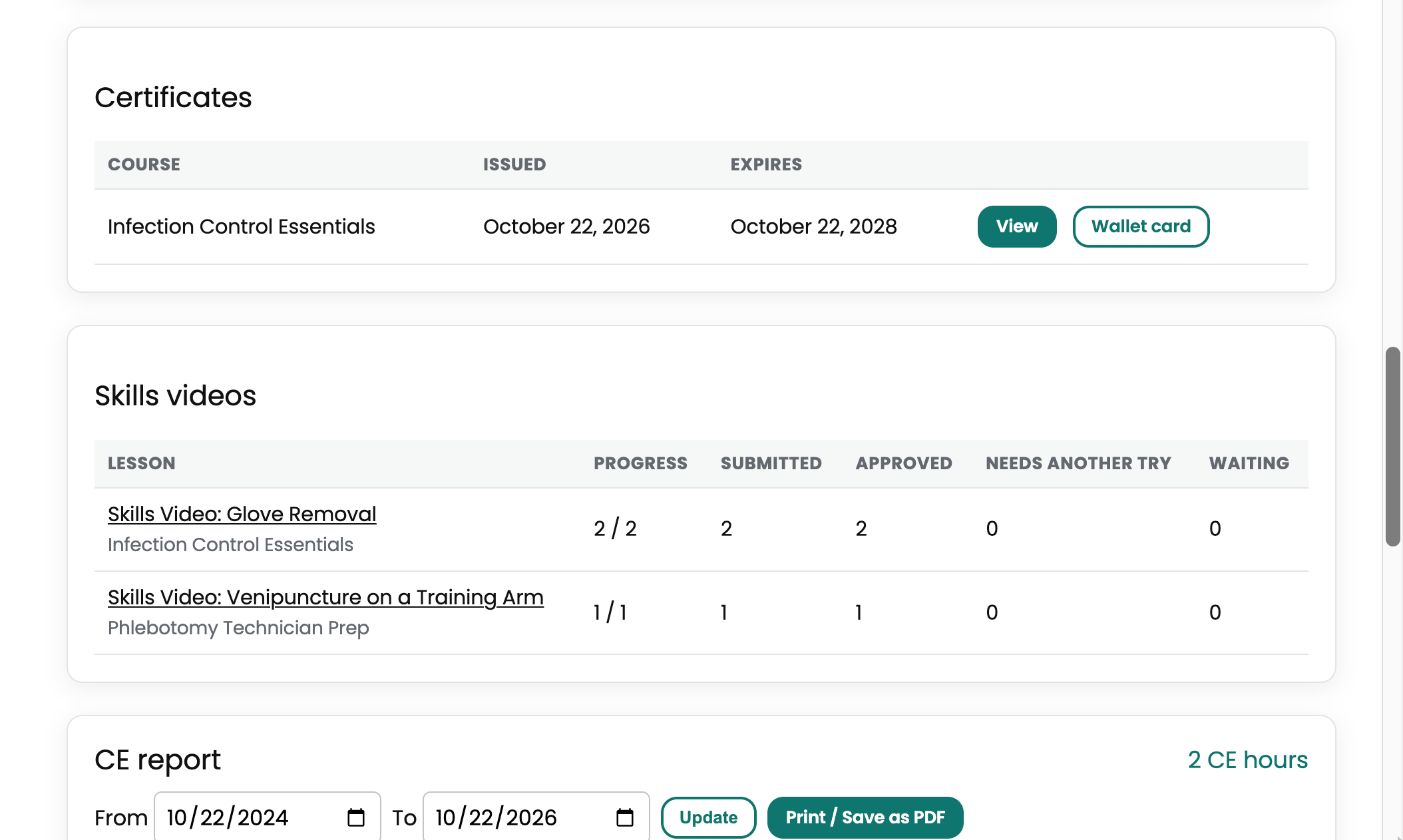
Students find every certificate on their profile with a CE hours report. Employers scan the QR code, or use your Verify a Certificate page, to confirm it is genuine without logging in.